
If you have followed the troubleshooting guidance and your issue remains unresolved Contact FFM Support.
You will be prompted to create an account to submit a support ticket - this is not linked to your LaDIS account.
When submitting a ticket include:
- Your name
- Course name (if applicable)
- A screenshot of the issue
- Any error messages received
I Can't Access LaDIS
Internal Users
- Confirm you are using your FireWeb username and password
- Enter your username using the format ffm\username
- If you have recently registered, allow at least 24 hours for processing
External Users
- Try resetting your password using your username
- Your username may not be the same as your email address
If you cannot remember your username, contact FFM Support.
I Forgot My Password
Internal Users
Password management is handled through your FireWeb account.
You can reset your FireWeb password here
External Users
Use the Forgot Password option on the login page to reset your password.
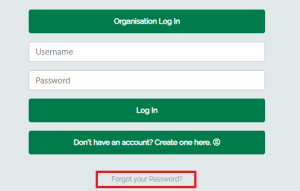
Password Reset Email Not Working
If you are requesting a password reset email and not receiving one, it is possible you have an old email address attached to you account or the incorrect username.
Contact FFM Support for further help to access your account.
An account already exists with this name and DOB
It is possible you already have a LaDIS account.
Contact FFM Support for further help to access your account.
Frequently Asked Questions
Do I need a separate LaDIS account as an Internal User?
No. Internal users access LaDIS using their FireWeb account.
How long does enrolment approval take?
Courses such as Tree Hazard Awareness and Basic Wildfire Awareness are approved automatically.
Courses requiring approval may take up to two business days. You will receive an email when your enrolment has been approved.
Can I complete training on my phone?
No. Training should be completed using a desktop or laptop computer to avoid issues with results not saving correctly.
Why is my course not showing as completed?
The course may not have been fully completed or the completion information may not have been successfully recorded. Attempt the course again and take a screenshot when you get to the end. If the same issue occurs contact FFM Support and provide the screenshot as evidence of completion.
View the video here on how to close eLearning correctly.
Still Need Help?
If you have followed the troubleshooting guidance and your issue remains unresolved:
Include:
- Your name
- Course name (if applicable)
- A screenshot of the issue
- Any error messages received